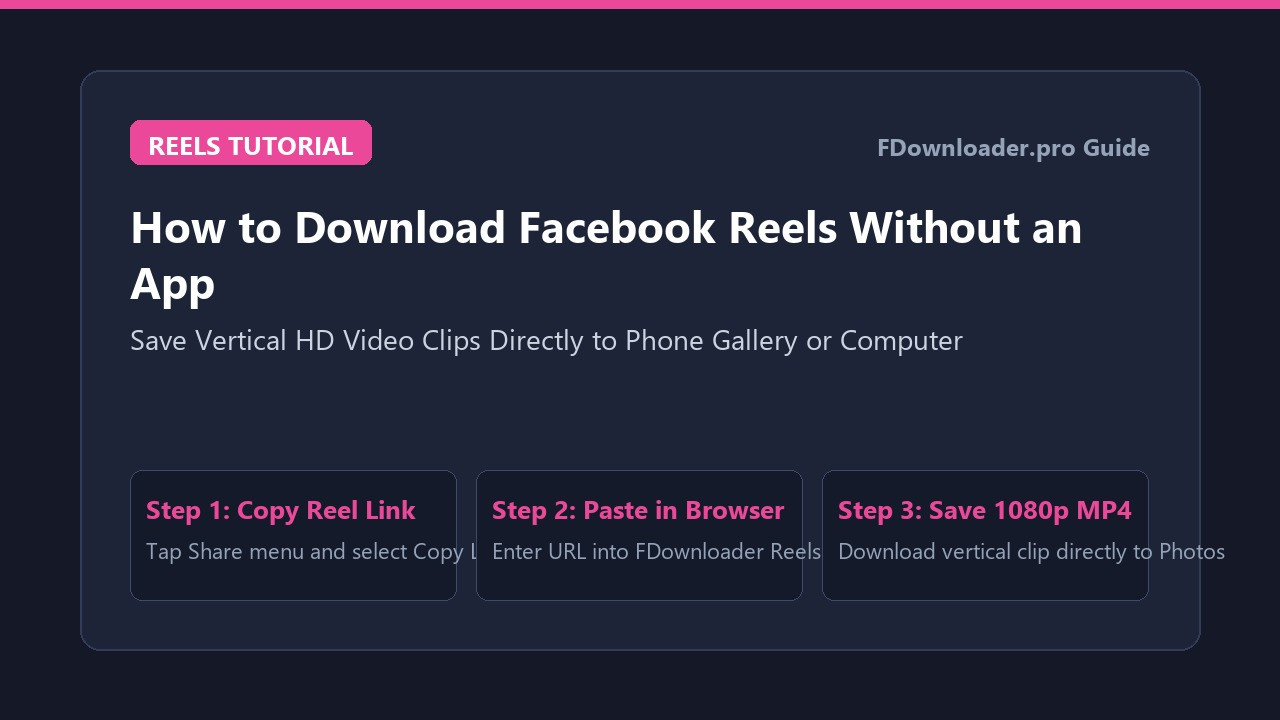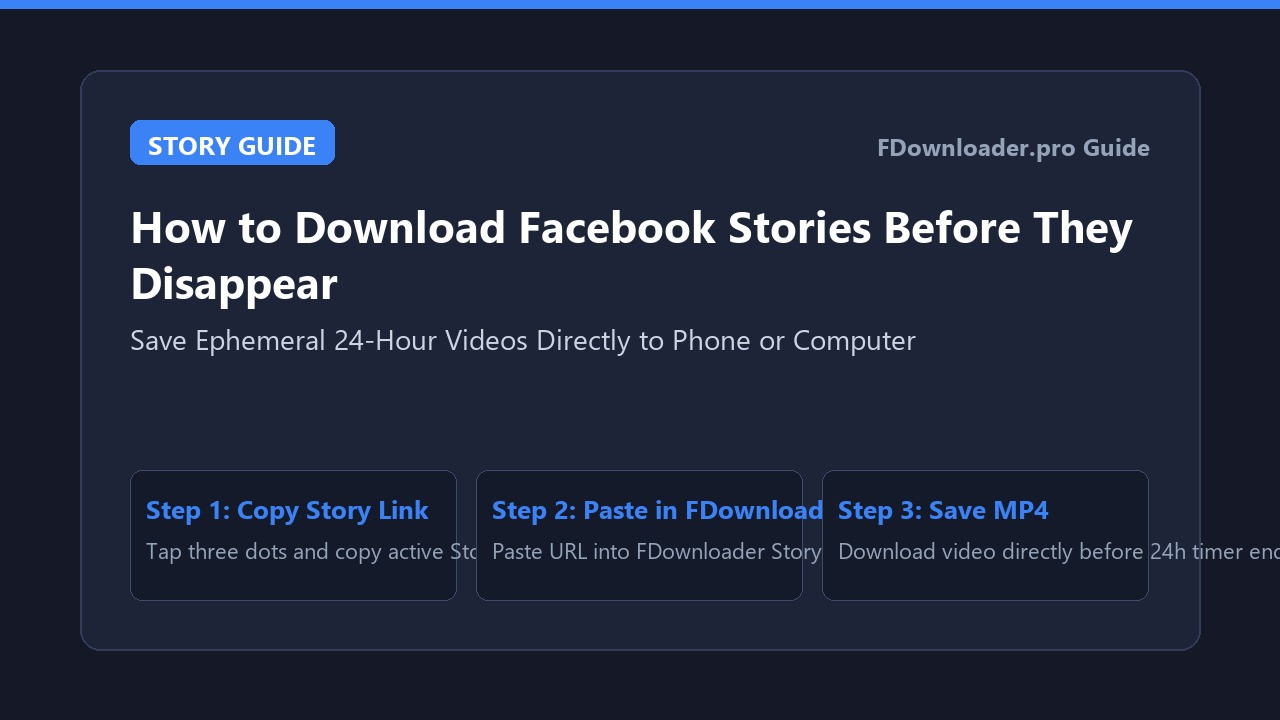
How to Download Facebook Stories Before They Disappear
Ephemeral media has reshaped how people communicate online. Across personal feeds and brand pages, Facebook Stories showcase authentic moments, event highlights, and quick travel impressions that capture attention immediately.
However, the defining characteristic of Stories is also their primary drawback: each post exists on a strict 24-hour timer. Once that daily window closes, the media file is automatically removed from public viewing. Tapping the save button inside the Facebook interface merely creates a temporary bookmark in your profile, which becomes inaccessible the moment the Story expires or the author removes it.
To keep a permanent copy of a memorable moment or educational tutorial on your phone or computer, you need an independent solution. By using a browser-based Facebook Story downloader, you can download Facebook Stories before they disappear directly into your device photo gallery, without installing unverified third-party apps.
Why Built-In Bookmarks Fail for 24-Hour Stories
Understanding how Facebook manages ephemeral media explains why downloading actual MP4 files is the most reliable option:
- Automatic expiration: When 24 hours elapse, Facebook archives the post to the creator's private account history, making public stream playback impossible from Saved bookmarks.
- Uninterrupted offline playback: Saving a physical video file allows you to watch clips during flights, commutes, or remote travel without relying on mobile data.
- Easy sharing across apps: Having a standalone MP4 file makes it straightforward to share clips with family members who do not use social media or cannot open web links.
- Archiving important memories: Creators regularly share milestone announcements or project updates in Stories. Downloading a copy helps ensure these moments are preserved in your personal collection.
How to Copy the Active Facebook Story Link
Capturing the correct web address before the post expires is the foundational step on any device:
- Open Facebook on your smartphone or desktop computer.
- Navigate to the active Story you wish to save before its 24-hour window ends.
- Tap or click the three horizontal dots icon in the upper-right corner of the Story viewer.
- Select Copy link to share this story from the menu options.
- If viewing on desktop, you can also copy the URL directly from your browser address bar while the Story is actively playing.
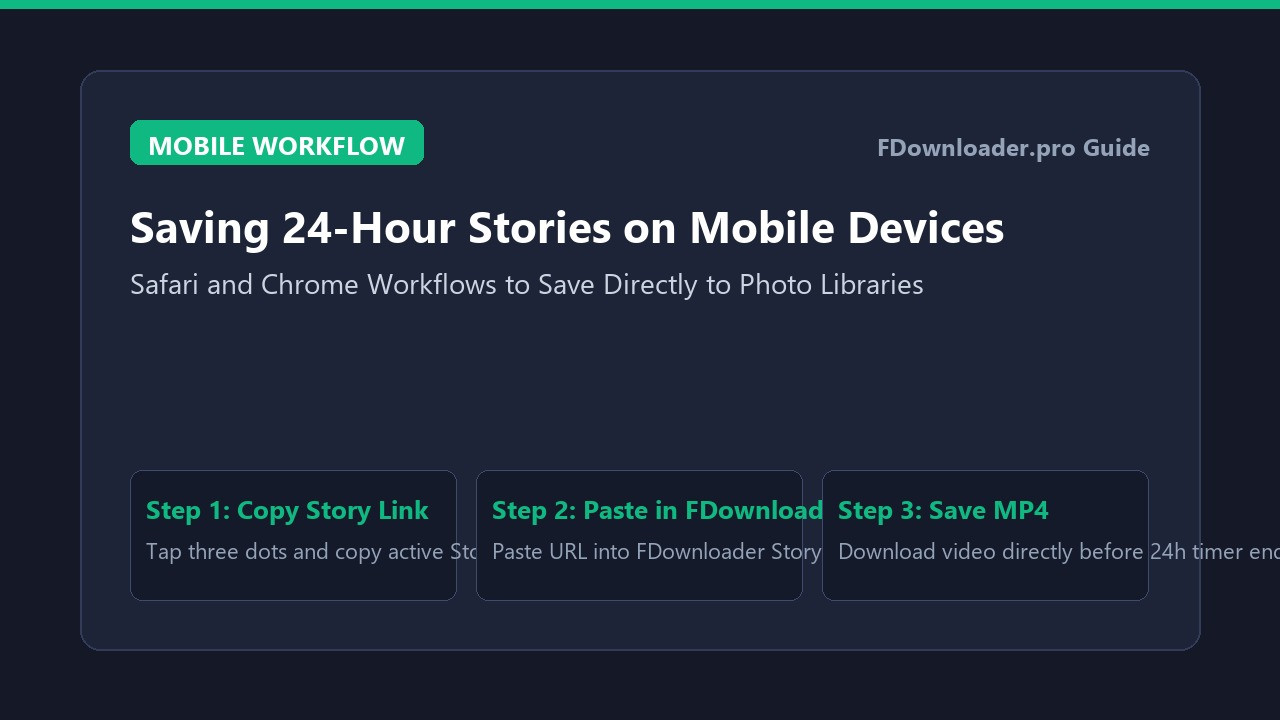
Step-by-Step Guide: How to Download Facebook Stories on Mobile (iPhone & Android)
The web-based download process requires no app store downloads and works through default browsers like Safari and Chrome:
On iPhone and iPad (Safari to Photos App)
Apple iOS handles file downloads smoothly through Safari's built-in download manager:
- Launch Safari and navigate to FDownloader Story.
- Tap inside the conversion box, paste your copied Story link, and tap Download.
- Choose your preferred video resolution from the available options.
- When Safari asks to confirm the download, tap Download.
- Tap the circular download progress icon in the address bar, select the downloaded file, tap the Share icon, and select Save Video to transfer the clip into your Photos app.
On Android (Chrome to Gallery)
Android provides a direct storage structure that places downloaded media directly into your default photo albums:
- Open Google Chrome or your favorite mobile browser and visit FDownloader.
- Paste the Story link into the search field and tap Download.
- Select your desired resolution from the parsed options.
- Chrome will download the MP4 file directly into your device
Downloadsfolder. - Open your default Gallery or Google Photos app to find the new Story under your Recent or Downloads album.
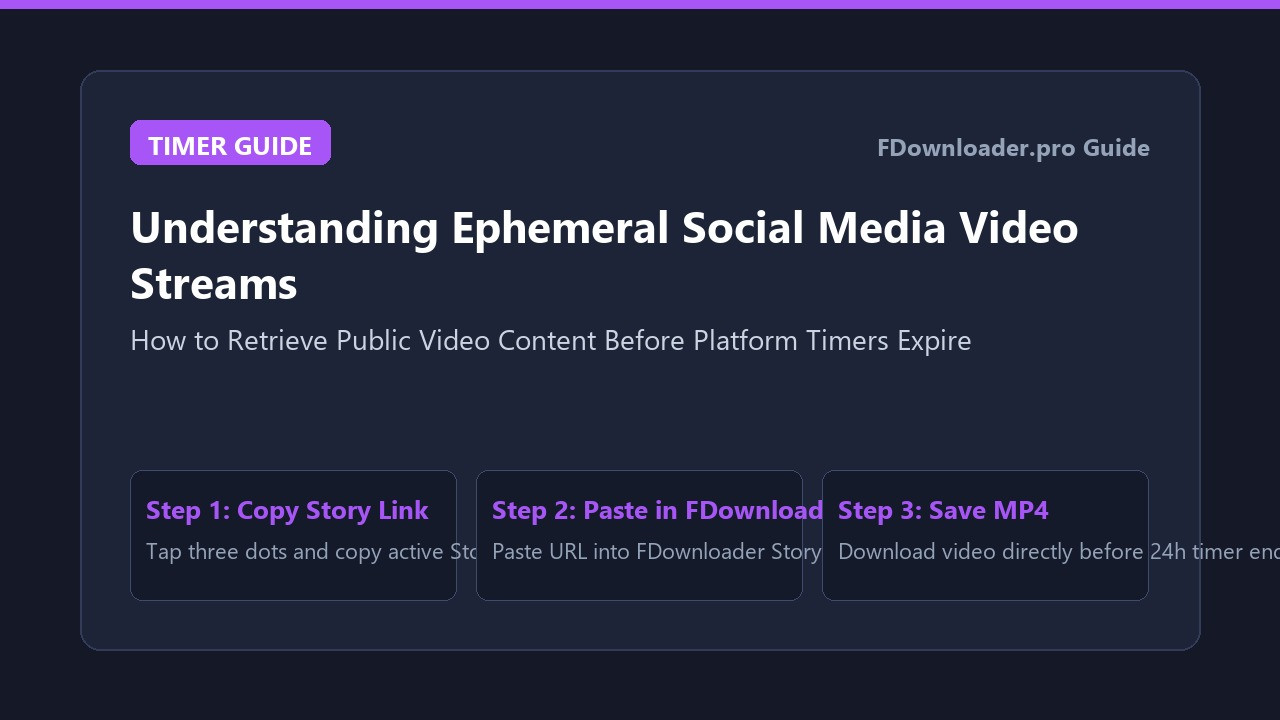
How to Download Facebook Stories on PC and Mac
If you use a desktop computer for media organization or presentation preparation, downloading Stories through a browser is equally straightforward:
- Open Chrome, Edge, Firefox, or Safari and visit FDownloader Story.
- Paste the copied Story URL into the search field using keyboard shortcut Ctrl + V (or Command + V on macOS).
- Click Download to parse the video stream.
- Choose your preferred quality and confirm the file save.
- The MP4 file is saved to your default
Downloadsfolder, ready for immediate playback in VLC Media Player or QuickTime.
Understanding Quality and Vertical Aspect Ratios
When saving ephemeral videos, maintaining clarity and synchronized sound is essential:
- Vertical 9:16 framing: Stories are filmed vertically for mobile displays. Online download tools aim to preserve the original aspect ratio so saved clips look natural on handheld screens.
- Audio synchronization: Facebook often delivers audio and video streams separately during adaptive playback. Reliable web utilities merge these tracks on cloud servers so the resulting MP4 includes clear sound.
- Source resolution: Download quality depends on the resolution originally chosen by the creator during recording and upload.
Troubleshooting Common Story Download Difficulties
If you encounter unexpected results when attempting to save a Story, consider these practical solutions:
The Story Has Already Expired
If an online tool fails to parse a link, check whether more than 24 hours have passed since the original publication. Once expired, Facebook removes the stream from public endpoints, meaning external web tools can generally no longer access the clip.
The Post Is Set to Private or Restricted
Web downloaders can only access content that has public visibility. If a Story was published by a private account or restricted to a custom friends list, external tools cannot reach the stream. Always confirm that the post features the public globe icon before copying the link.
Browser Plays the Video in a New Tab Instead of Downloading
If clicking download opens the video player in a new browser tab, right-click the video player on desktop and select "Save video as...". On mobile devices, tap the three dots icon on the browser player toolbar and select Download.
Conclusion
Knowing how to download Facebook Stories before they disappear gives you complete freedom to preserve meaningful moments and valuable tutorials. By using an online tool like FDownloader, you can save high-definition vertical clips directly to your phone or computer promptly, supporting convenient offline viewing whenever you need it.
Share this post: