How to Download Facebook Videos to Your Computer (PC / Mac)
Whether you want to archive a valuable tutorial, save an insightful webinar, or keep a backup of a memorable family moment, watching Facebook videos on a computer screen remains the preferred experience for millions of desktop users. Desktop setups offer wider displays, higher audio fidelity, and immediate access to full local disk storage.
However, many users click the "Save video" button inside the Facebook interface and assume the media is downloaded. In reality, Facebook only bookmarks the link inside your account. If the original author removes the post, or if you lose internet connectivity, you lose access to the video immediately.
To truly save Facebook videos on computer storage as standalone MP4 files, you need a reliable method to download the video stream. Fortunately, modern web standards allow you to download Facebook videos to computer systems running Windows, macOS, or Linux directly through your browser, without installing suspicious desktop software or risky browser extensions.
Why Download Facebook Videos Directly to Your Computer?
Storing Facebook videos locally on your desktop or laptop offers distinct practical benefits compared to mobile streaming:
- True offline access: You can play videos during flights, remote travel, or network outages without buffering interruptions.
- Long-term digital archiving: Content creators frequently update, delete, or restrict old posts. A local copy provides reliable offline access to valuable reference material.
- Enhanced editing and presentations: Having an MP4 file on your hard drive allows you to import clips into presentation software or video editing suites smoothly.
- Maximum video resolution: Desktop download tools often allow you to extract the full original bitstream, including 1080p Full HD and high-definition audio.
How to Copy the Correct Facebook Video Link on Desktop
Before downloading any video, you must obtain its exact web URL. Desktop browsers make this step straightforward:
- Open your desktop web browser (Chrome, Edge, Firefox, or Safari) and visit Facebook.
- Locate the specific video, Reel, or public post you wish to save.
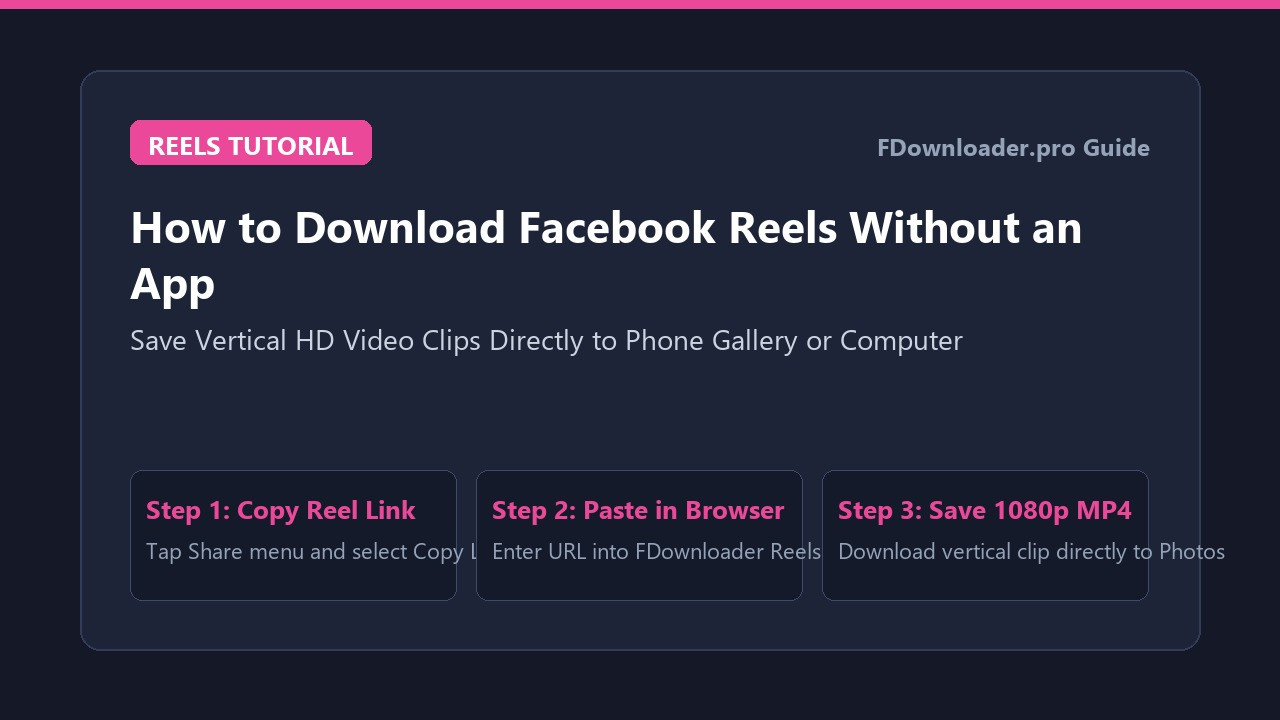
- Click the Share button beneath the post and select Copy link.
- Alternatively, right-click directly on the playing video and select "Copy video URL at current time".
- Verify that the post is public. Online download services process public media streams because private posts require authenticated account access.
How to Download Facebook Videos on Windows PC (Step-by-Step)
Windows users can download high-definition Facebook clips quickly using default browsers like Microsoft Edge, Google Chrome, or Mozilla Firefox. No extra codecs or third-party executable files are needed.

Step 1: Open Your Browser and Access an Online Downloader
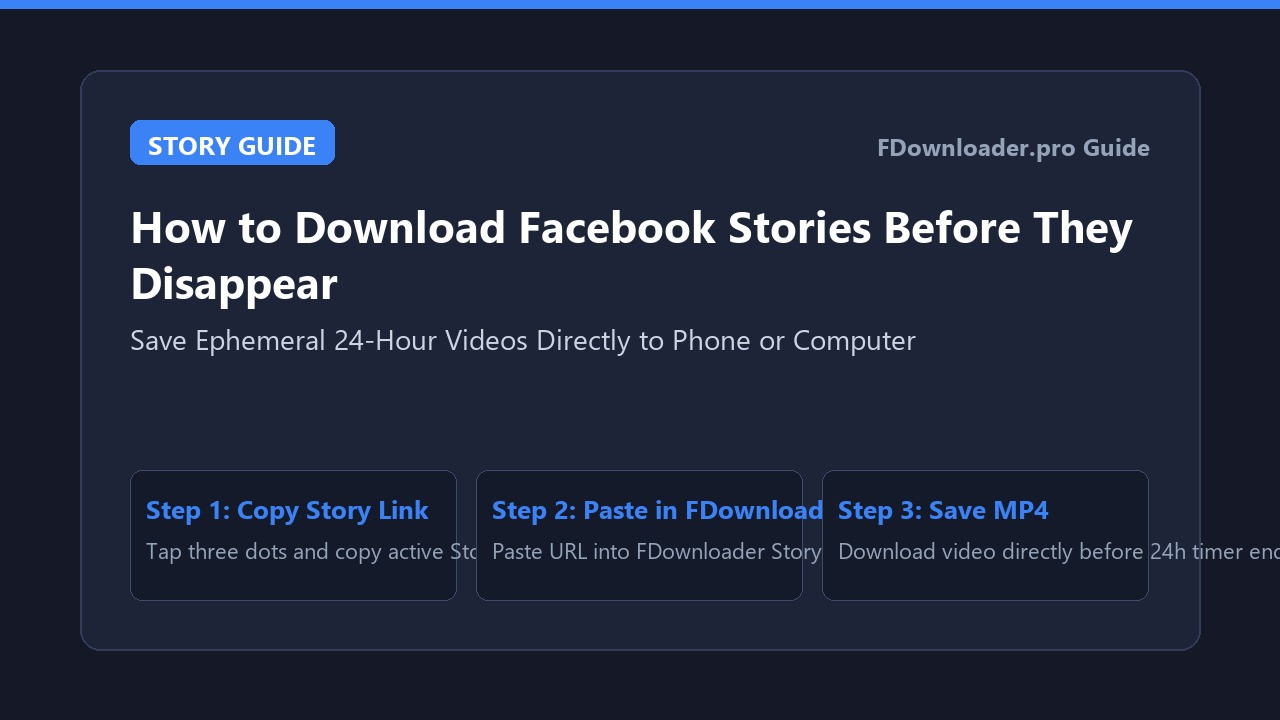
Launch your web browser and navigate to a trusted web-based tool such as FDownloader. Web tools run entirely on cloud servers, keeping your computer free from adware, background processes, or browser bloatware.
Step 2: Paste the Video URL and Initiate Conversion
Click inside the URL input field on the homepage and paste your copied Facebook video link using keyboard shortcut Ctrl + V. Click the Download button to analyze the video stream.
Step 3: Choose Your Preferred Resolution
The system will parse the media stream and display available download options. Depending on how the original clip was uploaded, you will typically see choices such as:
- 1080p Full HD: Ideal for archiving, large monitors, and presentations.
- 720p HD: Balanced file size with clear visual detail.
- 360p or 480p SD: Compact file size suitable for quick reference or limited disk space.
Click the Download link next to your selected format.
Step 4: Save the MP4 File to Your Windows Storage
Your browser will start downloading the video file immediately:
- By default, Windows saves the file into your user
Downloadsfolder (C:\Users\YourUsername\Downloads). - If your browser asks where to save the file, choose your preferred target folder on drive C, D, or an external drive, and click Save.
- Once completed, press Ctrl + J in Chrome or Edge to view your download history, or open File Explorer to inspect your new MP4 file.
How to Download Facebook Videos on Mac (Step-by-Step)
Downloading Facebook media on macOS is equally smooth. Safari and Chrome on macOS handle web downloads natively through the operating system's built-in download manager.

Step 1: Navigate to the Downloader in Safari or Chrome
Open Safari or your preferred Mac browser and head to FDownloader. Using a secure web tool avoids installing unverified third-party macOS packages that might trigger Gatekeeper security warnings.
Step 2: Paste the Link and Fetch Available Streams
Click into the conversion bar and paste the Facebook video link using Command + V. Press Return or click Download to extract the available video resolutions.
Step 3: Select Quality and Confirm Download
Choose your desired video quality (1080p, 720p, or standard definition). When Safari prompts you with "Do you want to allow downloads on fdownloader.pro?", click Allow.
Step 4: Locate Your Video in Finder
- Safari displays a circular download progress icon in the upper-right toolbar. Click it to monitor active transfer speeds.
- When the download finishes, click the magnifying glass icon next to the file name in the Safari download list to reveal the file immediately in macOS Finder.
- By default, macOS stores the file in
~/Downloads. You can double-click the file to play it instantly in QuickTime Player or drag it into Apple TV or your video library.
Best Practices for Managing Downloaded Facebook Videos
Once you begin saving multiple clips, keeping your desktop storage organized ensures quick retrieval:
- Rename files immediately: Most downloaded web files carry randomized string names like
facebook_video_1080p_98432.mp4. Rename them with clear titles including the creator name, topic, and date. - Verify media player compatibility: Standard MP4 video with H.264 video and AAC audio plays natively across Windows Media Player, Movies & TV, and macOS QuickTime. For complex formats or variable frame rates, open-source players like VLC Media Player provide flawless playback.
- Extract audio when video is unnecessary: If you only need a speech, musical performance, or podcast episode, use a dedicated audio conversion option to save storage space.
Troubleshooting Desktop Facebook Video Download Issues
If a download fails or produces unexpected results, check these common causes and solutions:
The Downloader Reports a Private Video Error
Facebook strictly enforces privacy boundaries. If a video was posted inside a closed Facebook group, marked as "Friends Only", or restricted by geographic region, public web converters cannot reach the media file. Verify that the post has a public globe icon on Facebook before copying the link.
Video Plays in Browser Instead of Downloading
Sometimes clicking the download button causes Chrome or Edge to play the video directly in a new browser tab instead of triggering a file save. To fix this:
- Right-click on the video player in that new tab.
- Select "Save video as...".
- Choose your folder location and confirm the MP4 download.
No Sound on High-Definition 1080p Files
Facebook often stores 1080p and higher video streams separately from audio streams to optimize adaptive bitrate streaming for web clients. High-quality tools like FDownloader automatically combine the video and audio tracks on cloud servers before delivering the final file, ensuring crisp sound on every device.
Download Interrupted by Antivirus or Browser Extension
Certain aggressive ad blockers or third-party download manager extensions can intercept web requests and break online conversions. If your download stalls at zero percent, try temporarily disabling intrusive browser extensions or opening an Incognito or Private browsing window.
Conclusion
Saving Facebook videos directly to your PC or Mac provides complete control over your favorite media, ensuring uninterrupted offline access, easy archival, and crystal-clear high-definition playback. By using a secure online downloader like FDownloader, you can quickly save public Facebook videos and Reels for offline viewing, without exposing your computer to questionable software installations.
Share this post: