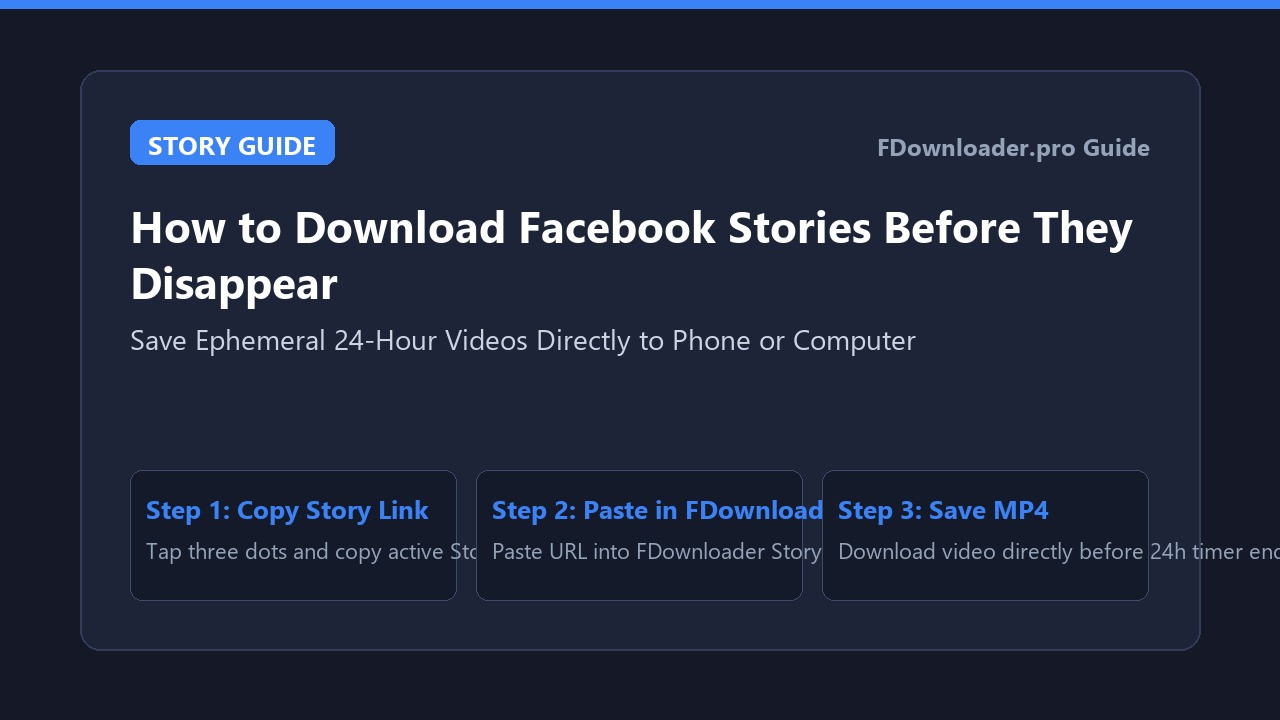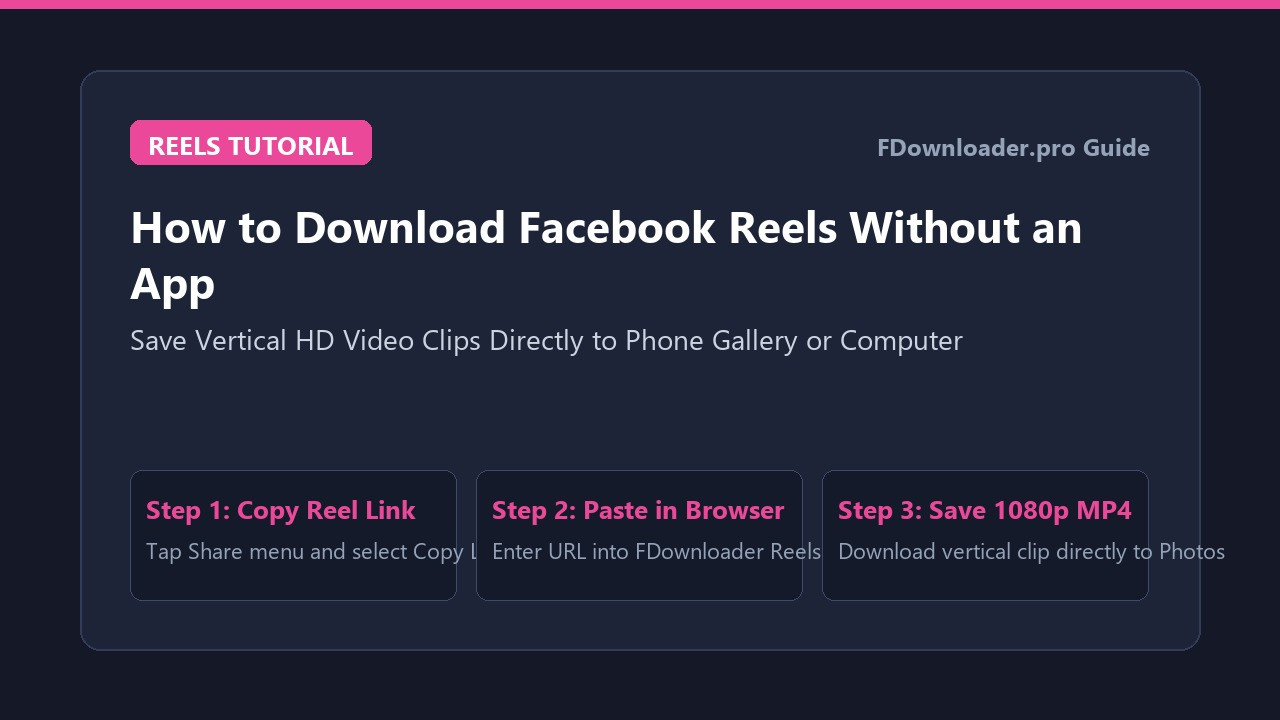
How to Save Facebook Videos to Watch Later
You are taking a quick break during work or scrolling through your feed while in transit, and an engaging video catches your attention. It could be a comprehensive photography workshop, an in-depth cooking demonstration, or a long-form interview that requires twenty uninterrupted minutes to appreciate fully.
Because you cannot watch the entire video right away, you look for a way to save Facebook videos so you can return to them during your evening leisure time. Most users immediately tap the three dots on the post and select "Save video," believing they have stored the file for later viewing.
However, depending on where and when you plan to watch, relying solely on Facebook's default save feature might leave you disappointed. This guide covers how to save Facebook videos using the built-in bookmarking system, how to download actual MP4 files for genuine offline playback, and how to manage your personal media library effectively.
Understanding the Two Ways to Save Facebook Videos
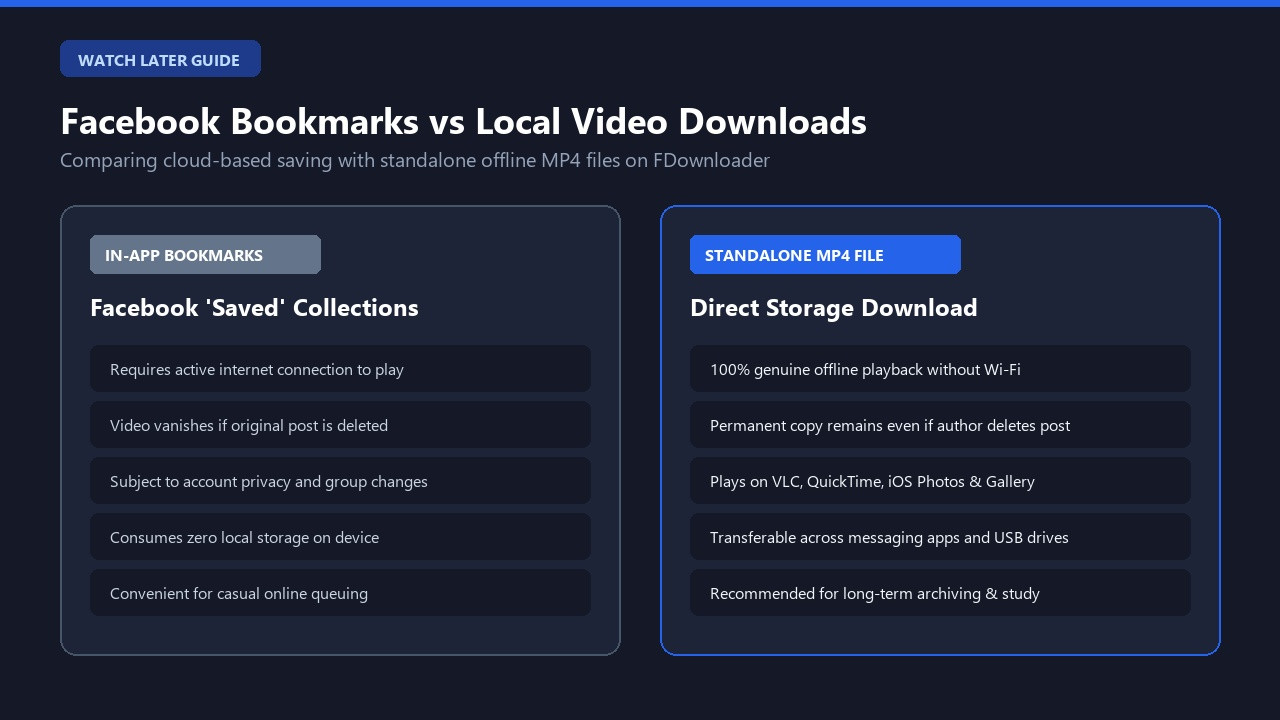
Before choosing a method, it is important to distinguish between cloud-based bookmarks and local file downloads.
In-App Bookmarks (Facebook Saved Items)
When you save a post inside the Facebook interface, the platform adds that post URL to a private list linked to your user account. This method is convenient because it takes one tap and consumes zero device storage. However, you must have an active internet connection to stream the content later. Furthermore, if the creator deletes the post or changes its privacy settings to private, your bookmark becomes unusable.
Local File Downloads (True Offline Storage)
Downloading the media stream creates an independent MP4 file directly on your smartphone, tablet, or computer. This approach allows uninterrupted playback during flights, subway rides, or camping trips where mobile networks are unavailable. Even if the original post is removed from Facebook, your local file remains accessible on your device.
Method 1: How to Save Facebook Videos Inside the App (Cloud Bookmarks)
If you simply want to queue interesting clips to watch on your home Wi-Fi later tonight, Facebook's built-in tool is quick and lightweight.
Saving Videos on Mobile (iPhone and Android)
- Navigate to the post or Reel you want to bookmark.
- Tap the three horizontal dots located at the top-right corner of the post (or the bottom-right corner on Reels).
- Select Save video (or Add to Saved).
- Choose an existing collection, or tap New Collection to create a custom topic folder like "Tutorials" or "Fitness".
- A confirmation banner will appear at the bottom of your screen indicating the post has been bookmarked.
Saving Videos on Desktop (Web Browser)
- Scroll to the video post on the Facebook website.
- Click the three dots icon in the post header.
- Click Save video to add it to your Saved items list.
- You can click Add to a collection if you wish to categorize the post immediately.
How to Access Your Saved Videos Later
Finding your bookmarked content is straightforward across all devices:
- On mobile: Tap the Menu icon (three horizontal lines), select Saved from the shortcuts menu, and tap on any saved post to resume watching.
- On desktop: Click on the Left Sidebar on the Facebook homepage, click Saved (or visit
facebook.com/saved), and browse your organized collections.
Method 2: How to Save Facebook Videos to Phone and PC for Offline Watching
When traveling, commuting, or preserving educational content that might be removed, saving actual video files to your local storage is the most practical choice.
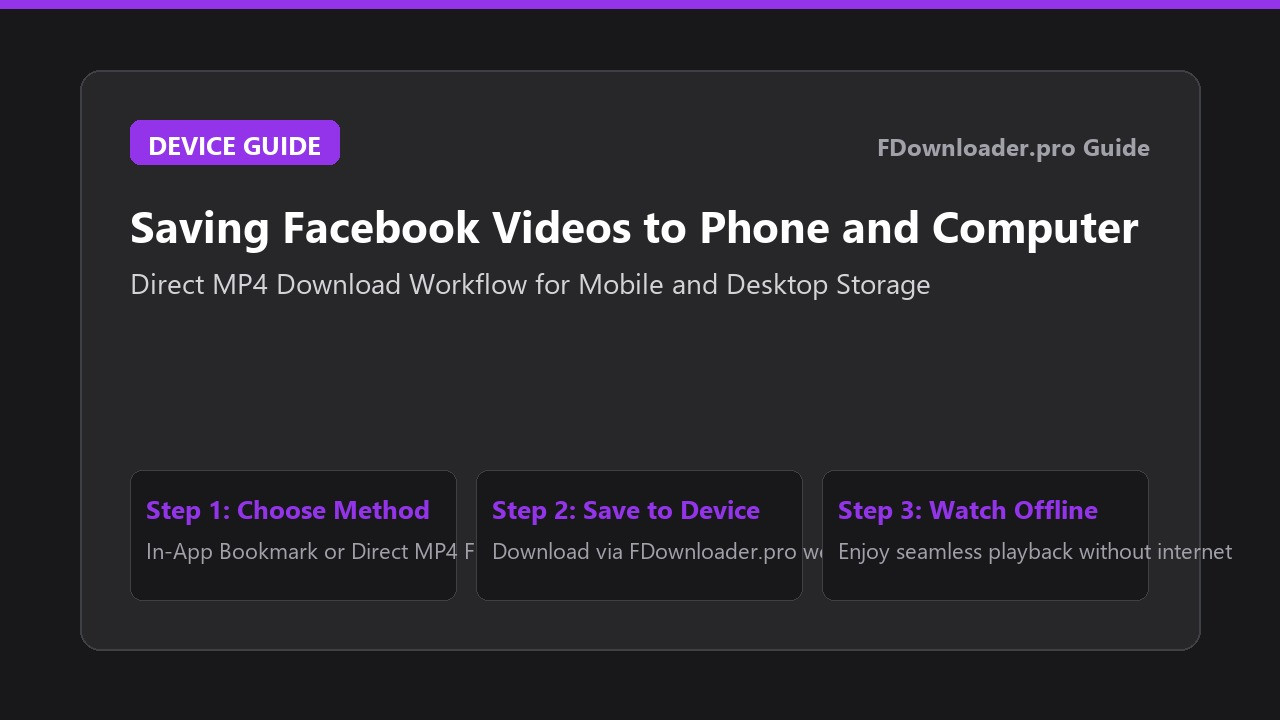
Step 1: Copy the Video Link
- On mobile: Tap the Share button beneath the video player and tap Copy link.
- On desktop: Click Share and select Copy link, or right-click the video player and choose "Copy video URL at current time".
Step 2: Open an Online Downloader in Your Browser
Launch Safari, Chrome, Edge, or Firefox and visit a reliable browser-based utility like FDownloader. Using a secure web tool allows you to save media without installing risky third-party mobile apps or desktop software.
Step 3: Paste the URL and Select Your Resolution
Paste the copied URL into the search field and click Download. Once the tool analyzes the available media streams, select your preferred video resolution:
- 1080p Full HD: Recommended for desktop screens, TVs, and long-term archiving.
- 720p HD: Balanced file size with clear video quality, ideal for mobile storage.
- 360p SD: Compact file size for fast transfers on restricted cellular data.
Step 4: Save the File to Your Device
- On iPhone: Confirm the Safari download prompt, tap the Downloads icon in the address bar, open the preview, and tap Share followed by Save Video to move the clip into your Photos library.
- On Android: Chrome saves the MP4 file into your Downloads folder, where your Gallery and Google Photos apps detect it automatically.
- On PC or Mac: The file lands in your system Downloads folder, ready for viewing in media players like VLC or QuickTime.
How to Organize and Manage Your Saved Facebook Videos
Whether you use cloud bookmarks or local downloads, establishing a structured library saves time when searching for specific clips:
- Use descriptive collection names: In the Facebook Saved menu, create focused collections such as "Recipes to Try", "DIY Home Repair", or "Industry Webinars" rather than keeping hundreds of unorganized links in your default list.
- Rename downloaded video files: Default downloaded file names often consist of random numerical IDs. Rename your MP4 files with the creator name and topic immediately after saving.
- Offload large files periodically: If you save numerous 1080p clips, move older files to external storage drives or cloud backup solutions to keep your primary phone storage clear.
Troubleshooting Common Issues When Saving Facebook Videos
If you encounter difficulties saving or accessing your videos, consider these common solutions:
A Saved Video Disappears from Your Collection
If a bookmarked video suddenly vanishes from your Saved tab or displays an "Attachment Unavailable" notice, the original creator likely deleted the post, changed its audience to private, or deactivated their account. This is the primary drawback of cloud bookmarks and the main reason why downloading important clips to local storage is recommended.
Online Downloader Reports an Access Error
Public downloaders can only access posts that have public privacy settings. If a video was posted in a private Facebook group or shared exclusively with a creator's personal friends, external download tools cannot extract the stream. Check that the post features the public globe icon before copying the link.
Video Plays in Browser Instead of Downloading
If tapping download opens the video player in a new browser tab instead of starting a file transfer, right-click the video player on desktop and select "Save video as...". On mobile devices, tap the three vertical dots on the browser player toolbar and tap Download.
Conclusion
Knowing how to save Facebook videos gives you flexibility over your digital media consumption. For quick viewing later on a stable Wi-Fi connection, Facebook's built-in Saved collections provide a lightweight bookmarking tool. When you require dependable offline access or want to preserve valuable tutorials independently, downloading the MP4 file through FDownloader ensures your favorite videos are always ready to watch on your own terms.
Share this post: