!How to Download Facebook Videos on iPhone and Android
Watching a great recipe, an insightful interview, or a funny clip on Facebook often makes you want to keep a copy on your mobile device. However, tapping "Save video" inside the Facebook app does not store the video file on your phone. Instead, it merely bookmarks the post inside your personal Facebook account, meaning you still need an active internet connection to watch it, and if the creator deletes the post, the clip disappears forever.
If you want to save Facebook videos on phone storage so you can watch them offline or keep an archive, you need a different approach. Fortunately, both iOS and Android allow you to save video files directly to your device storage using mobile browsers, without installing untrusted third-party utility apps from app stores.
This guide walks you through the exact steps to download Facebook videos on your mobile device, how to move them into your camera roll or photo gallery, and how to fix common download problems.
What You Need Before You Start
Before attempting to download a clip, make sure you have:
- A public Facebook video: Web-based download tools can only process videos published with public privacy settings. If a video is posted in a private Facebook group or shared exclusively with friends, external downloaders cannot retrieve the media stream.
- The mobile browser of your choice: Safari works best on iOS because its built-in download manager integrates smoothly with the iOS Files system and Photos app. On Android, Google Chrome, Samsung Internet, or Firefox will work without issue.
- Sufficient storage space: High-definition video files can take anywhere from 20 MB to several hundred megabytes. Check your available storage before starting long video downloads.
How to Get the Video Link from Facebook
Regardless of your mobile operating system, the first step is always copying the correct direct link to the Facebook post.
- Open the Facebook app on your phone (or visit Facebook in your mobile browser).
- Navigate to the post or Reel you wish to save.
- Tap the Share button located beneath the video.
- From the sharing menu, look for and tap Copy link.
- *Note on mobile apps:* Sometimes "Copy link" is located inside a secondary menu labeled "More options." If you are viewing the video in full-screen mode, you can also tap the three horizontal dots (
...) in the corner and select Copy link. - Once your clipboard confirms the link is copied, exit the Facebook app.
How to Download Facebook Videos on iPhone (Step-by-Step)
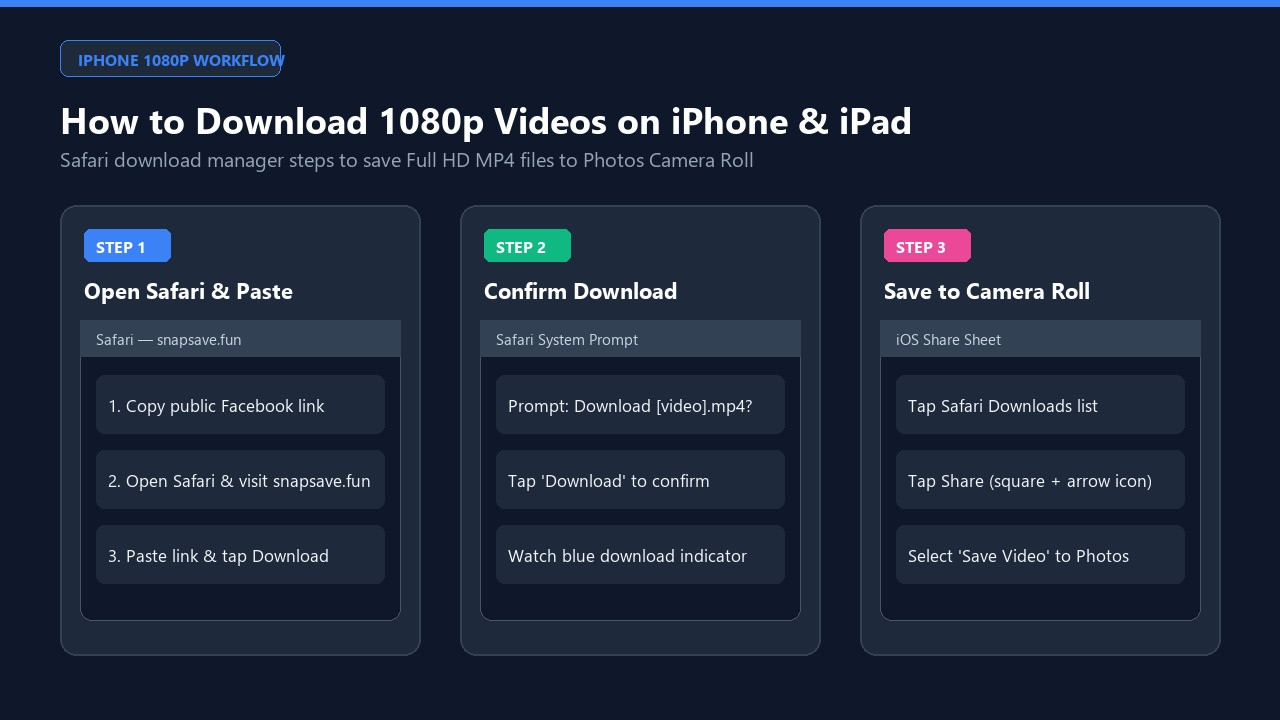
Apple's iOS has strict file handling and security sandboxing, which historically made downloading media files tricky. However, starting with iOS 13, Safari features a native download manager that makes downloading web files straightforward.
Here is the complete process to download Facebook videos on iPhone directly to your Camera Roll:
Step 1: Open Safari and Go to an Online Downloader
Launch Safari and visit a web-based downloader such as FDownloader. Web downloaders run entirely in your browser, so you do not need to install dubious utility apps from the App Store that are often packed with ads or subscription traps.
Step 2: Paste the Video URL
Tap the input box on the screen, select Paste, and insert the Facebook video link you copied earlier. Tap the Download button to let the service extract the available video streams.
Step 3: Select Your Video Quality
The tool will display the video details along with available resolution options, typically Normal Quality (SD) or High Definition (HD), depending on the original source file. Tap the download link next to your preferred quality.
Step 4: Confirm the Safari Download
Safari will display a system prompt asking: *"Do you want to download [file-name].mp4?"* Tap Download.
You will see a small blue circular download indicator appear in Safari’s address bar (either at the bottom or top of your screen, depending on your iOS layout). Tap this icon to monitor the download progress.
Step 5: Save the Video to Your Camera Roll (Photos App)
When the download finishes, the video resides in your iPhone’s temporary "Downloads" folder inside the Files app, not in your Photos app. To move it into your Camera Roll:
- Tap the Downloads icon in Safari's address bar and tap the downloaded video file.
- The video will open in a quick preview player. Tap the Share button (the square with an arrow pointing upward) in the lower-left corner.
- Scroll down the actions list and tap Save Video.
The video is now stored in your native Photos app under Recents and Videos, accessible offline at any time.
How to Download Facebook Videos on Android (Step-by-Step)
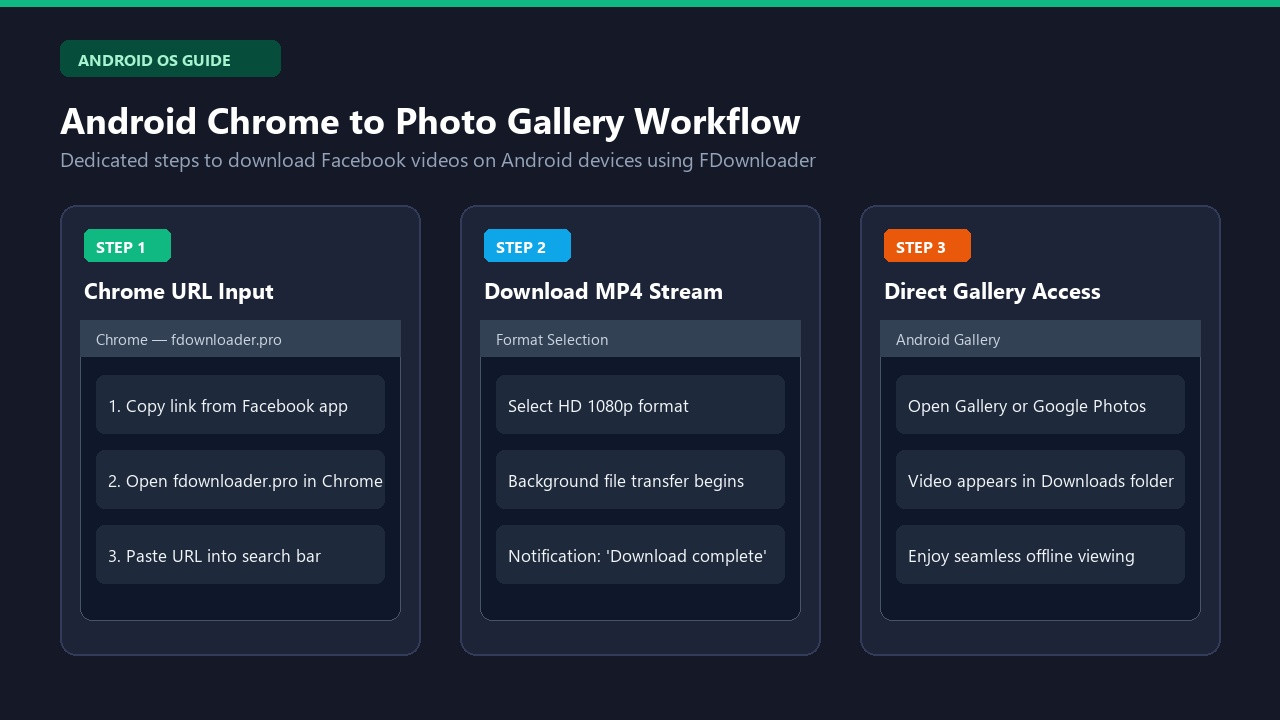
Android’s open file system makes downloading and managing media files quick and direct. In most cases, files downloaded through your browser automatically show up in your default Gallery or Google Photos app.
Follow these steps to download Facebook videos on Android:
Step 1: Open Your Browser
Open Google Chrome (or your preferred Android browser) and navigate to FDownloader.
Step 2: Paste the Link and Process
Tap inside the URL input box, hold until the Paste option appears, and tap it. Then tap Download.
Step 3: Choose Quality and Download the File
Select the quality option you want (HD or SD, when available). Once you tap your choice, Chrome will begin downloading the MP4 file.
A notification will pop up at the bottom of the screen showing "Downloading file," followed by "File downloaded."
Step 4: Locate the Video in Your Gallery
Unlike iOS, you usually do not need to manually move the file. Open your Gallery, Google Photos, or Files by Google app: - In your Gallery app, check the Downloads album. - In Files by Google, tap Downloads or navigate to the Videos category.
If the video does not appear in your Gallery immediately, restart your Gallery app or check your device’s File Manager under Internal Storage > Download.
What About Facebook Reels and Stories?
Facebook now hosts various video formats, and the process differs slightly depending on what you are saving:
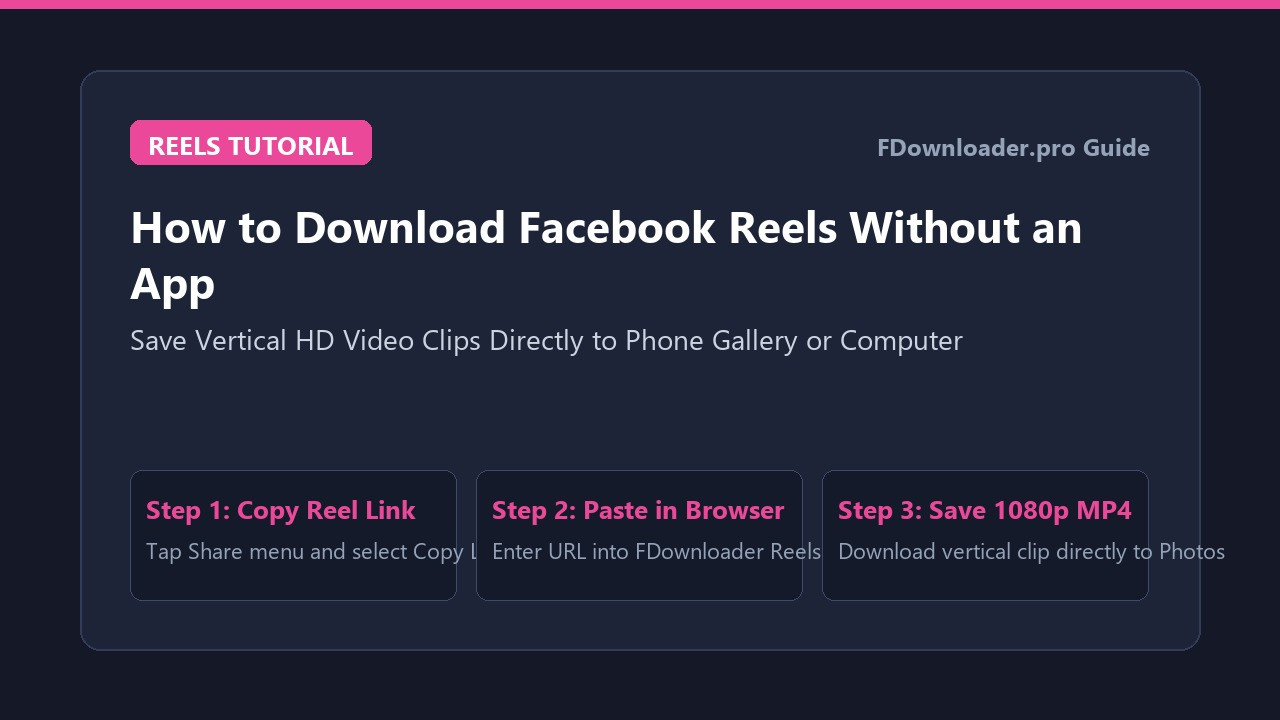
- Facebook Reels: Vertical short-form videos can also be downloaded to mobile devices using the same link-copying method. For dedicated Reels tools that preserve vertical mobile formatting, you can use specialized tools like the Facebook Reels downloader.
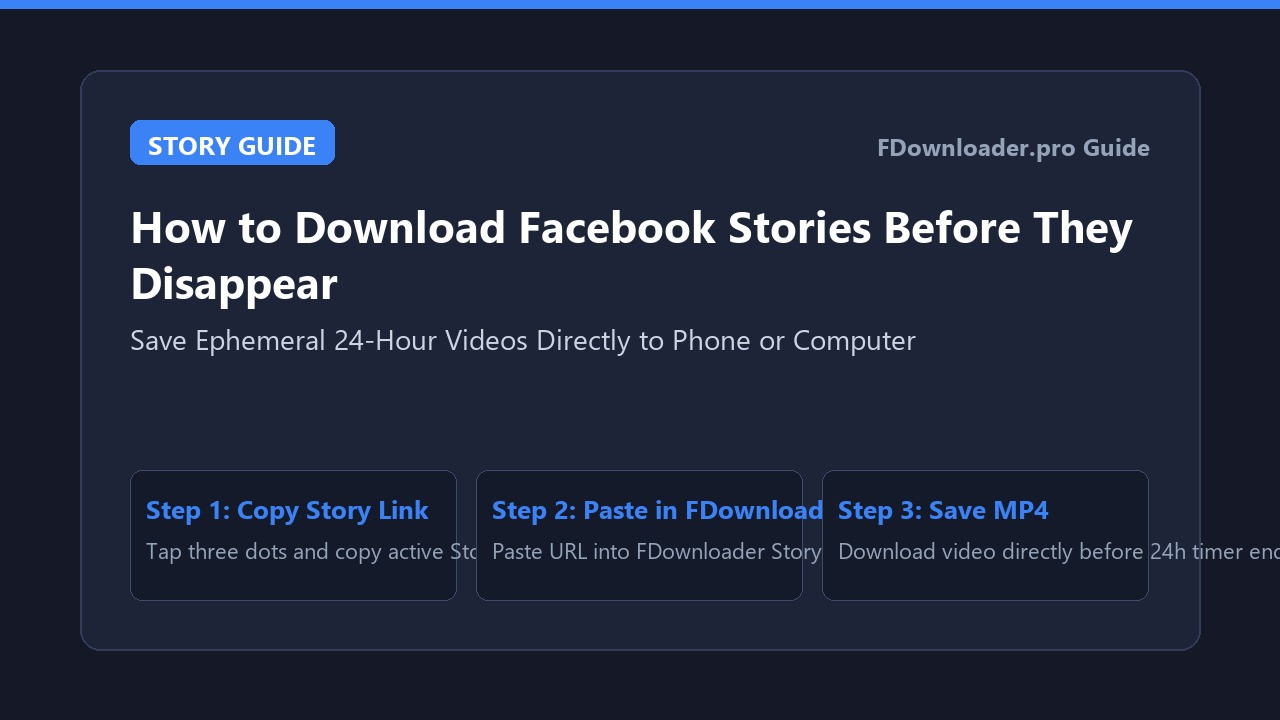
- Facebook Stories: Stories are temporary 24-hour posts. Because story links expire and are often tied to specific user privacy controls, you need a dedicated Facebook story downloader that can process story URLs before the 24-hour expiration window closes.
Troubleshooting Common Mobile Download Issues
If you run into trouble while attempting to save Facebook videos on phone browsers, here are the most frequent causes and how to resolve them:
1. The Video Fails to Process or Shows an Error
- Private Video Restrictions: If the video was posted inside a closed Facebook group, marked as "Friends only," or set to private by the author, web downloaders cannot fetch the stream. Only public videos can be parsed.
- Malformed Link: Facebook links sometimes include tracking parameters or redirect through
fb.watchshorteners. Make sure you copy the link directly from the official Share button rather than your browser's address bar while scrolling a feed.
2. The Video Has No Sound
On certain high-resolution Facebook videos (especially 1080p and higher), Facebook stores the video and audio tracks separately. If a downloader extracts only the video track, the file will play silently. High-quality downloaders automatically merge video and audio before serving the file, but if your file lacks sound, try selecting the standard 720p HD or SD option instead.
3. iPhone Did Not Save the Video to Photos
Remember that Safari saves downloaded files to the Files app (iCloud Drive > Downloads or On My iPhone > Downloads). You must open the file from Safari’s download list, tap the Share icon, and select Save Video for it to appear in your Photos app.
4. Android Download Stalls or Blocks Popups
Chrome on Android occasionally prompts for permission before downloading files from new domains. Look for a prompt asking *"Do you want to keep this file?"* or *"Allow Chrome to access photos, media, and files on your device."* Grant the permission to let the download finish.
Copyright and Fair Use Considerations
Before downloading any third-party content from Facebook, keep intellectual property and copyright rules in mind:
- Personal Offline Viewing: Saving a public video to your phone for personal offline reference is standard practice.
- Redistribution and Re-uploading: Downloading a video does not transfer ownership or licensing rights to you. Do not re-upload someone else’s video to your own Facebook page, YouTube, TikTok, or commercial platforms without explicit written permission from the original creator.
- Respect Creators: If you share an excerpt or credit the work in educational commentary, always attribute the original author and provide a link to their original Facebook post.
Summary
Downloading Facebook videos to your phone does not require complicated software or paid apps. Whether you use an iPhone or an Android device, all it takes is copying the public video link, pasting it into a reliable browser-based tool like FDownloader, and saving the file to your local storage.
Once saved, remember to move the file to your Photos app on iOS if you want quick access, and always respect the original creator's copyright when viewing and storing content.
Share this post: